
LLANRHIDIAN PRIMARY SCHOOL
Inspiring our learners to be the best they can be!
DCF- Imovie
LO: I can use a range of software to select, produce and edit a range of multimedia components for a purpose,
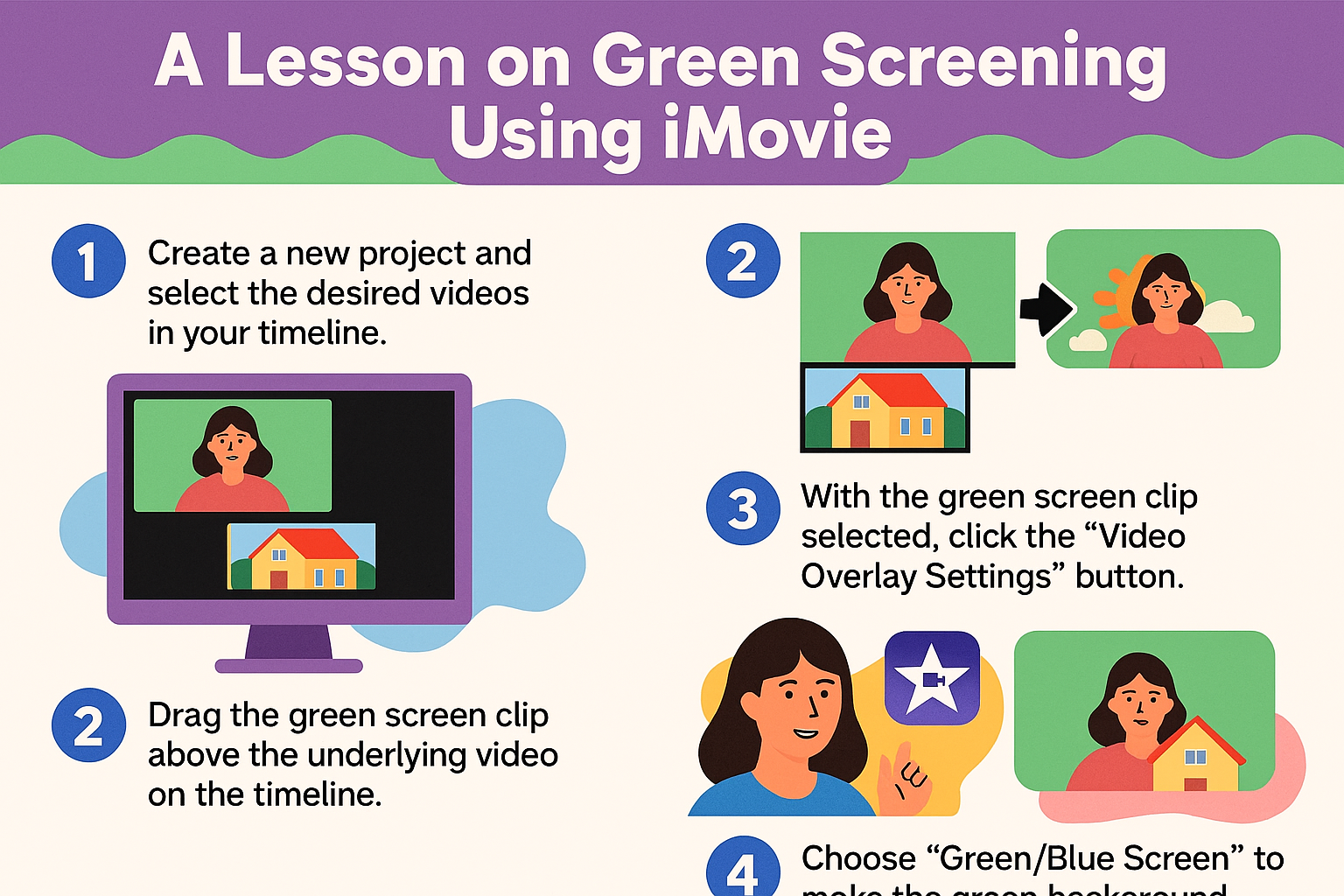
🎬 Step 1 — Start a New Project
- Open iMovie.
- Click Create New → Movie.
- Import the two videos:
- Your green screen video
- Your background video (e.g., a location, animation, or still image)
📸 See illustration above.
🎞️ Step 2 — Add Your Background Clip
- Drag your background clip onto the timeline first.
🟩 Step 3 — Add the Green Screen Clip
- Drag the green screen clip so it sits above the background clip.
- iMovie always applies green‑screen effects to the clip on top.
✨ Step 4 — Open Overlay Tools
- Click the green screen clip so it is highlighted.
- Above the preview window, click the icon that looks like two overlapping squares (Video Overlay Settings).
🧪 Step 5 — Choose “Green/Blue Screen”
- In the Overlay dropdown, choose Green/Blue Screen.
- iMovie automatically removes the green and blends your subject into the background.
🎨 Step 6 — Fine‑Tune the Effect
Use the controls to improve the result:
- Softness slider — adjusts how clean the edges are
- Crop — trims unwanted areas
- Clean-up tool — removes any remaining green
🛠️ Optional Extras
- Add titles or credits
- Insert sound effects or music
- Use cutaway transitions for more professional results
- Try swapping different backgrounds to match their story